

Dict8ion User Guide
Dictionary & Vocabulary Replace now available!
This new feature allows you to personalise your vocabulary for improved accuracy and results. Simply navigate to the user drop down and select “Text replacements and vocabulary” on dict8ion.com.
To get started, follow these simple steps:
- Identify common misspelt words or unique phrases used by your team. This could include industry-specific jargon, acronyms, medication names, or any other specialised terms.
- To add a word or phrase to your custom vocabulary list, just enter it into the vocabulary input field and click on the “Add” button.
- If you want to add the correct spelling of a word, input the incorrect spelling followed by the correct one in the designated fields and then click on “Add”.
- To modify a word, locate it in your list, click on “Edit”, make the necessary changes, and then hit “Save”.
- If you need to remove a word from your list, simply find it and select the “Delete” button.
- Remember, it’s easy to add, edit, or delete words as per your requirements. If you have any questions or need further assistance, don’t hesitate to reach out. We’re here to help. – Happy customising!
Dict8ion Web App
There are two ways to upload the audio recorded dictations into the desktop cloud application for editing.
- Record on the Dict8ion mobile app which securely uploads the dictation to dict8ion.ai web application ready to edit in minutes.
- Upload your recorded dictations to the web application.
Mobile App users dictations are automatically and securely sent into the dict8ion desktop cloud application. They have the clinicians name tagged to the file for easy reference
Option 1. The Dict8ion mobile app
Add an App user in the app.dict8ion.ai desktop cloud application
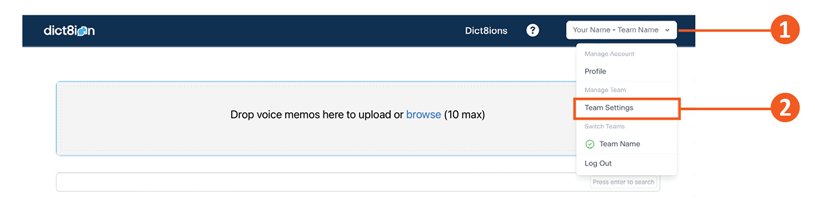
1. Go to your drop down menu in the top right hand corner
2. Select team settings
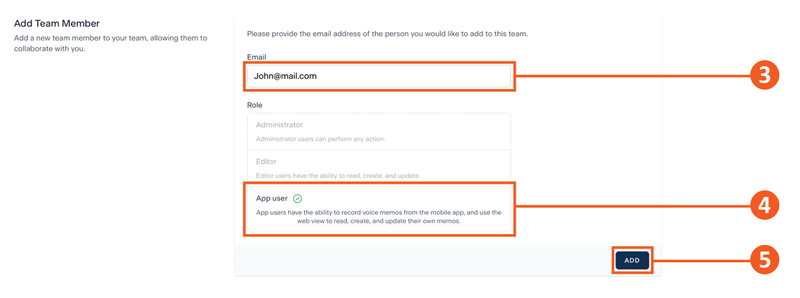
3. Add the new app users email address
4. Select “App user”
5. Click the “ADD” button
The new “App user” will be sent an email and be prompted to create a password. Please ensure they use the email they were invited with to create an account. Once the account is created they will be able to log into the app and cloud application.
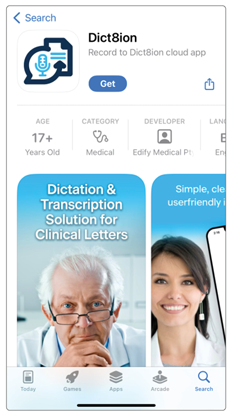
Download the App
The new “App user” will need to download the Dict8ion mobile app and sign in with their user name & password
Download the Dict8ion mobile app from the App Store or Google Play.
Search “Dict8ion” or use the below links
Instructions on how to use the mobile App to record are below.


Option 2: Uploading to the desktop cloud application
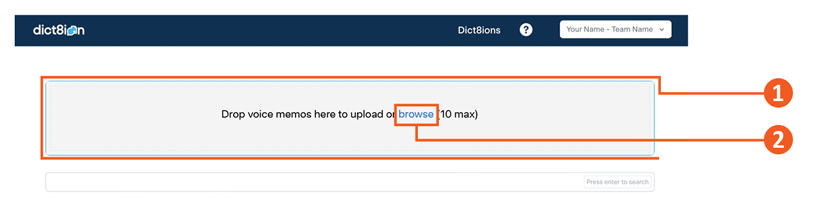
There are two ways to upload the voice recordings to the desktop cloud application
1. Drag and drop to the upload box
2. or click on the browse link to manually select the files
It generally only takes a few minutes to transcribe and format the letters, if your letter isn’t formatted please check back in a couple of minutes
Supported file formats to upload
m4a, mp3, webm, mp4, mpga, wav, mpeg, dds*, ds2*
*If you use Phillips devices and upload .DDS or .DS2 files we recommend you change the files to .MP3 as the processing time will be much quicker. Watch this video to see how to change the file formats – Click Here.
Workflow in dict8ion desktop cloud app
Home Page
Below shows the home page and is where all the dictations will appear when imported
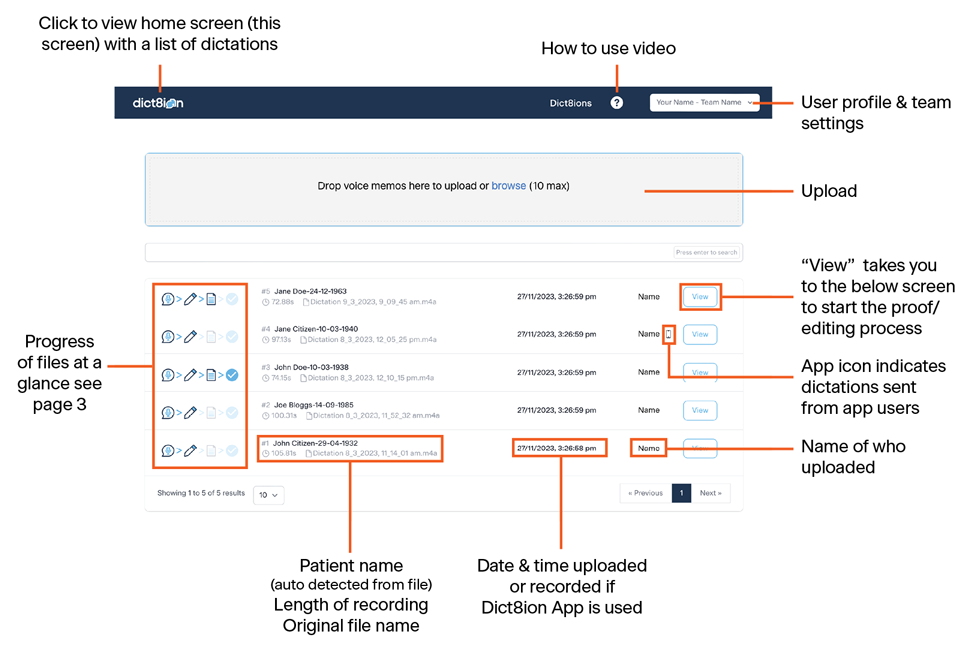
Progress view page
I am text block. Click edit button to change this text.
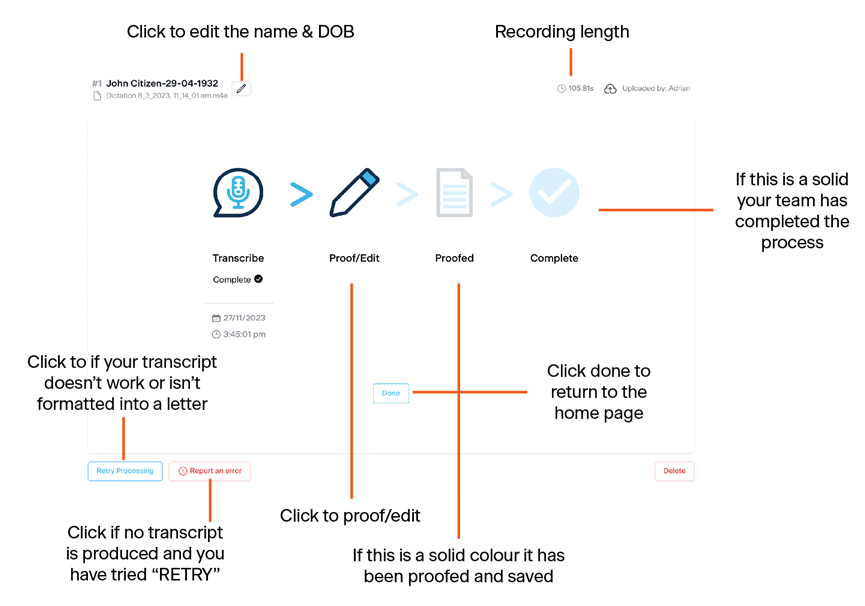
Important!
You won’t be able to edit the transcribed letter until our AI has made the required improvements, it generally takes a few minutes for this to be completed.
Editing the transcript
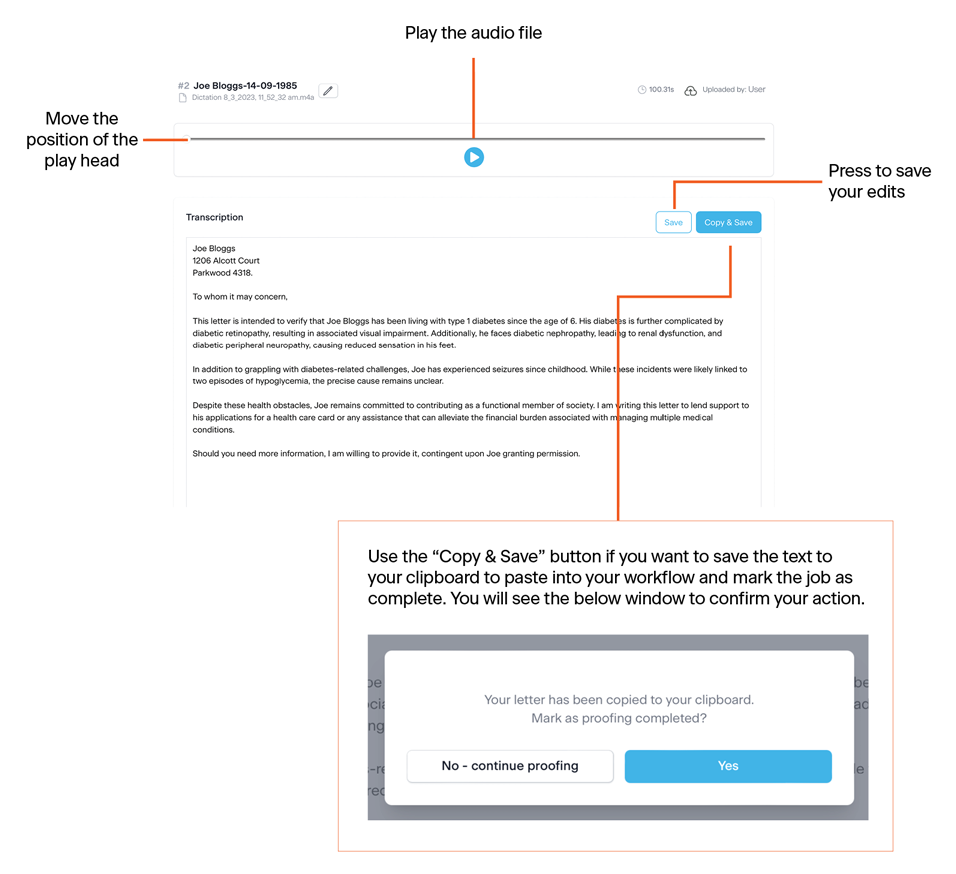
Play the audio file by pressing the play button, you can pause and move/scrub to different positions with the audio scrubber
Edit the text as required
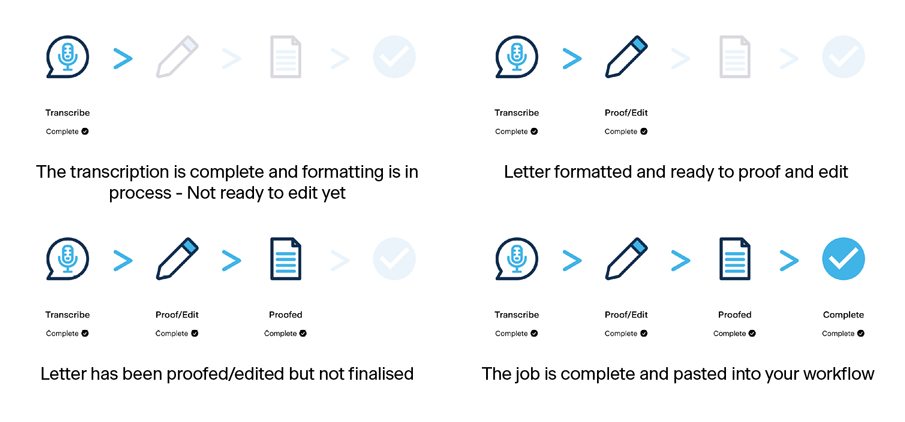
Progress Icons
The below icons show what stage in the process the job currently is and you can see these icons on the home page and when you click the “View” button on individual dicatations.
What to do if it doesn't transcribe and format
On the rare occasion your letter doesn’t transcribe and format properly please click the “Retry Processing” button.
If the problem persists click the “Report a problem” button and email help@dict8ion.com.
User functionality
Each user has different functionality depending on their role
Administrator
- Add users
- Edit dictations
- Access to all dictations
- Can use the mobile App to record directly into the Web App
Editor
- Edit & access to all dictations
App User
- Edit only their dictations
- Dictations saved directly into desktop web application
Adding Users
Add an additional user in the app.dict8ion.ai desktop cloud application. It is the same process for Editors and App users
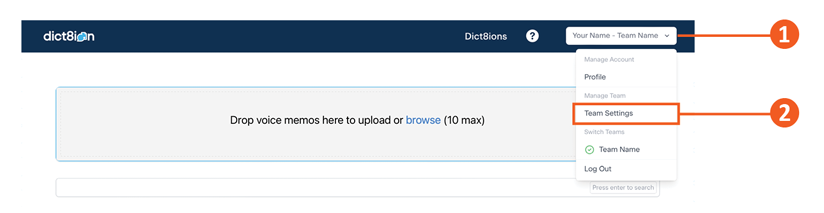
1. Go to your drop down menu in the top right hand corner
2. Select team settings
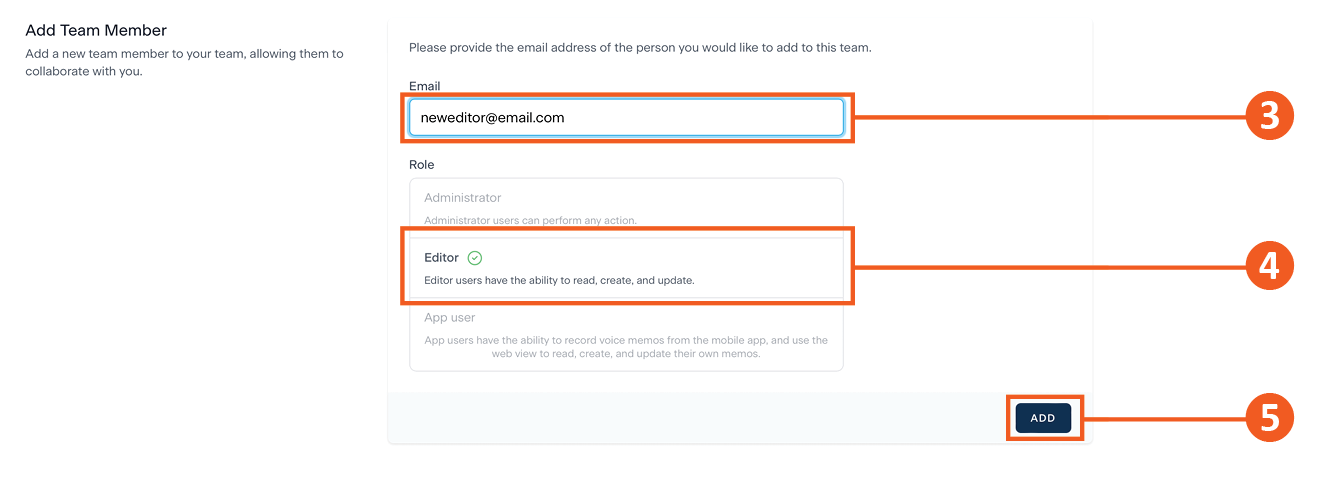
3. Add the new app users email address
4. Select “Editor”
5. Click the “ADD” button
The new “Editor” will be sent an email and be prompted to create a password
What is MFA
Multi-Factor Authentication (MFA) enhances digital security with extra layers beyond passwords, Dict8ion uses the Authenticator App (available on the App store and Google Play). This mitigates the risk of unauthorized access, making it challenging for malicious actors even if passwords are compromised. MFA is vital for compliance with data protection regulations, showcasing a commitment to robust security practices. Beyond individual account protection, it holds broader implications for regulatory compliance, risk mitigation, and the overall resilience of digital ecosystems, building trust with users and addressing global privacy efforts.
Dict8ion recommends you download and use MFA for extra patient security
Setting up MFA
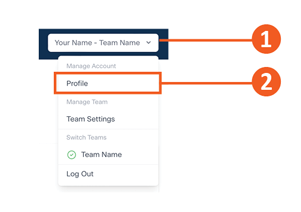
1. Go to your drop down menu in the top right hand corner
2. Select profile
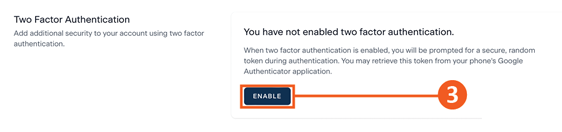
3. Select “Enable” and you will be prompted for your password to continue
4. If you don’t already have the Authenticator mobile app on your device download from your favourite app store for free
5. Follow the on-screen instructions to setup on your mobile device. You will be prompted for a code from Authenticator when you log in for an extra layer of security.
TIPS FOR RECORDING
- Say the patient name and DOB at the beginning and the file will automatically be renamed to the name and DOB.
- You don’t need to say ‘stop’ and new paragraph your letter will automatically be formatted.
How to use the mobile App
Once you are invited to become an App user you will be sent an email to create an account, please follow the link and create your account with your email and password.
It is important you create a new account with the email you are invited on so you are linked to your team.
Using the mobile app
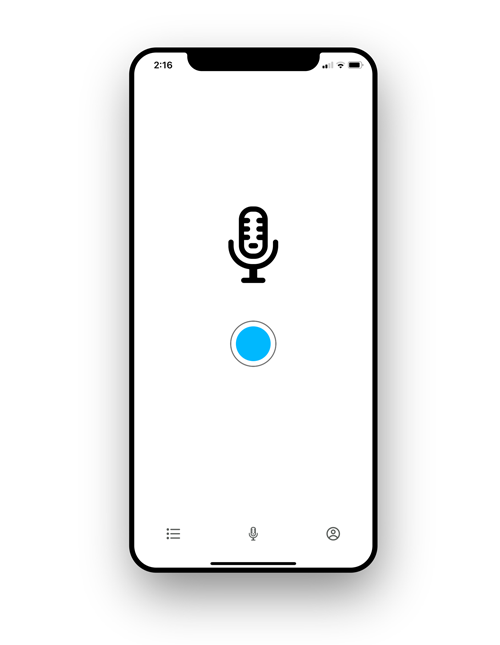
Press ‘record’ to start recording your dictation
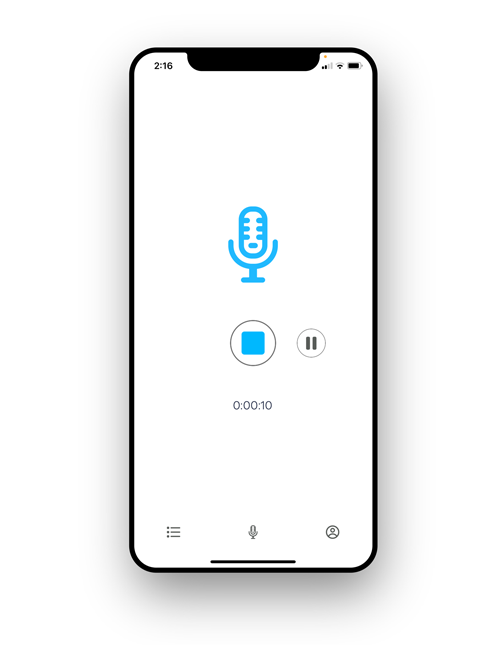
You can ‘pause’ and ‘resume’ your recording, once you are finished press ‘stop’
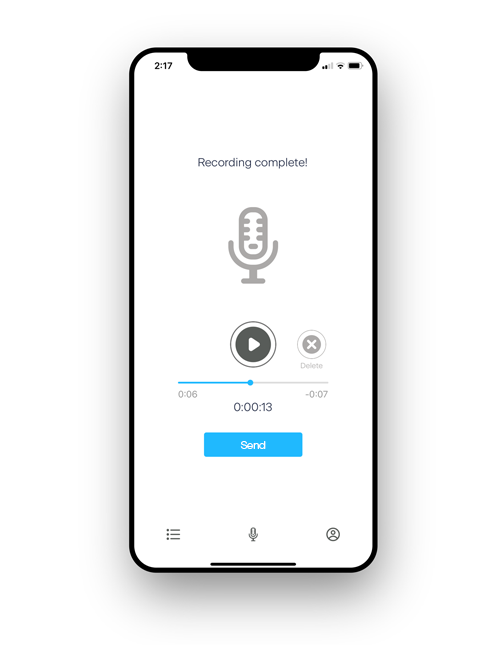
Once you have finished recording you can replay your dictation.
Press ‘send’ to send your dictation to the cloud application for transcribing, formatting and proofing for your team.
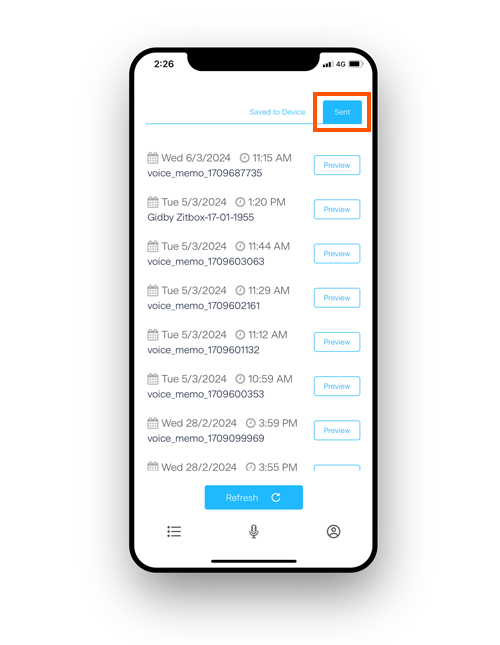
Click on the “list” icon in the menu to see your dictations, once they have been transcribed, formatted and renamed to the patients name and DOB you will be able to view them on the mobile app. You can’t edit on the mobile app. All sent dictation will be on the sent tab.
When you are in a black spot and have to wifi or data connection
If you are in a black spot and don’t have a wifi or data connection on your device your dictation will be saved to your phone. You will need to send this when you have reception again.
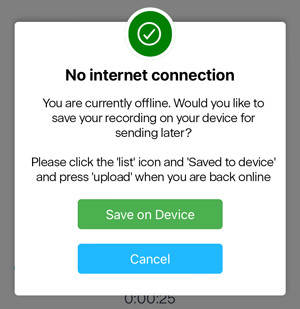
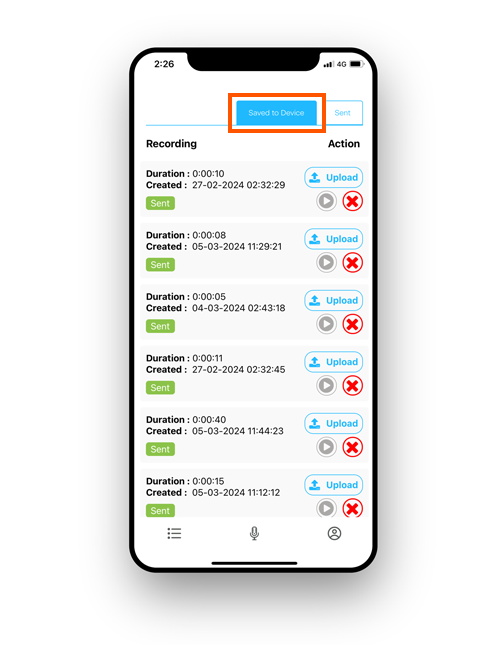
You will need to ‘send’ the dictations saved to your phone once you have reception. Please click on the “upload” button to send your dictation to the cloud application.
Additional Support
If you require additional support please email your sales representative or use the below form.